
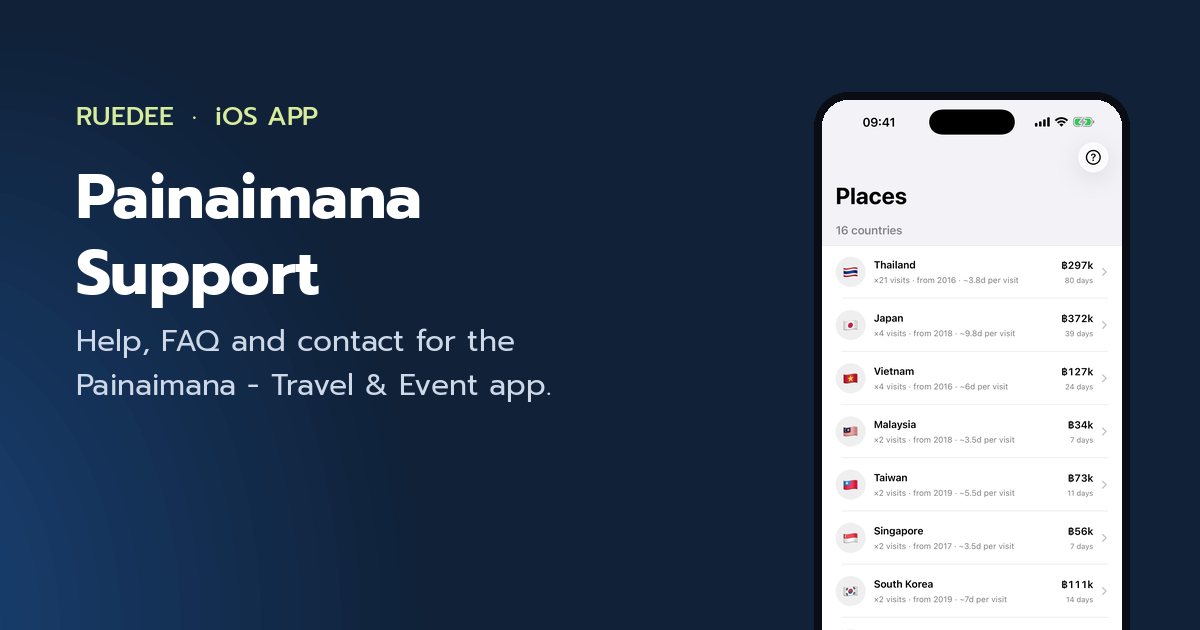
Painaimana - Travel & Event: Support
Thank you for using Painaimana - Travel & Event, the private travel log that keeps every trip, every day away and every baht on your own iPhone.
New here? See what the app does.
Contact us
If you have a question, found a problem, or want to suggest a feature, email us and we will get back to you as soon as possible. Please include your iPhone model and iOS version so we can help you faster.
Email: ruedee.com@gmail.com
Frequently asked questions
Where is my data stored?
All of your data is stored only on your device. The app works completely offline — there is no account, no sign-in, and nothing is sent to any server.
How do I add a trip?
Tap + at the top right of the Events tab. Give it a title, set when it starts and ends, pick a category and a country, and enter what it cost. The number of days works itself out from the dates and appears under the Ends row. Only the dates are really needed — a trip can be saved without a title.
What counts as a visit on the map?
Any entry with at least one day on it. The count comes from the start and end dates, so an entry that begins and ends on the same day is 0 days — a day out, a purchase, a note for later. Those stay in the log and still count towards your spending, but they do not add to the visit count on a pin.
Why is a country missing from the map?
A pin only appears when at least one entry has that country set. Open the entry, tap Edit and choose a country. Custom places you typed yourself are kept in the log but cannot be pinned, because they have no coordinates.
How do I back up my data?
Open Settings → Export CSV to save every event to a CSV file, then keep that file wherever you like. You can bring it back at any time with Import CSV.
Can I import my existing travel spreadsheet?
Yes. Save your sheet as CSV with the same columns the app exports — Year, Type, Days, Total, Date, End Date, Flight Cost, Country, Status, Note, Remarks and Tags — then use Settings → Import CSV. The app asks whether to add the rows to your log or replace it, and tells you how many rows it could not read.
What is the Home Country setting for?
Settings → Default Settings → Home Country marks where you live. Trips there count as Domestic and everywhere else as Oversea, so the filter button on the Events tab can show you one or the other. It is worked out from the country on each entry, so renaming a category never changes it.
Is there help inside the app?
Yes. Every tab has a ? button — in the navigation bar on Events, Places, Insights and Settings, and in the control stack on the Map. It opens the same getting-started guide, tab-by-tab explanation and FAQ you are reading here, and it works offline.
Can I change the currency?
Yes. Settings → Currency offers twelve currencies, from Thai Baht to US Dollar, Euro, Yen and Won. The app changes the symbol used throughout; it does not convert the amounts you already entered.
Can I rename the categories?
Yes. Settings → Event Categories, Event Statuses and Event Tags are all editable lists. Rename, add or remove entries to match how you actually travel.
Where do attached photos and videos go?
Into the app's own storage on your device, in a folder named after the event's date. They are never uploaded. Use Export Media (.zip) on an event to take copies out.
How does the daily spending plan work?
Set Plan per day in Settings. The app compares it with your actual figure — total spent divided by days on the road — both all-time and for the current year, and shows how far over or under you are.
If I delete the app, is my data deleted too?
Yes. Because everything is stored on your device, deleting the app deletes its data, including attached photos and videos. Export a CSV backup first if you want to keep it.
What data do you collect about me?
None. There is no analytics, no advertising and no third-party SDK in the app. The full privacy policy says the same in more detail.
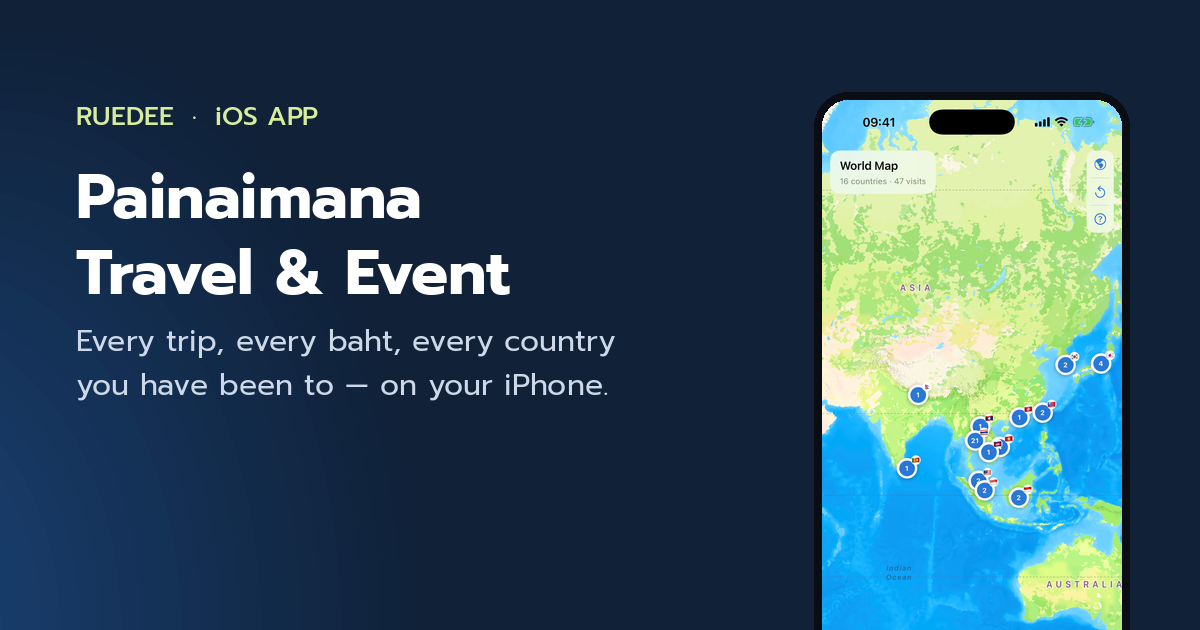
Painaimana - Travel & Event
A private travel log for iPhone — trips, days, spending and a world map that counts your visits.
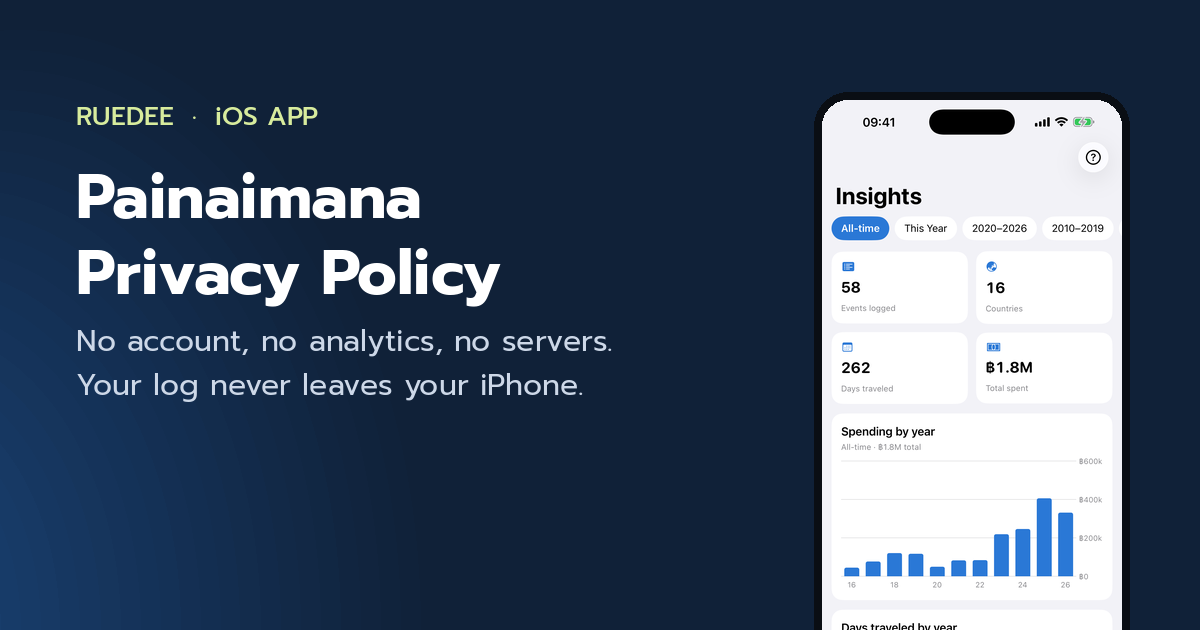
Painaimana - Travel & Event: Privacy Policy
How the Painaimana - Travel & Event app handles your data: it does not collect any.
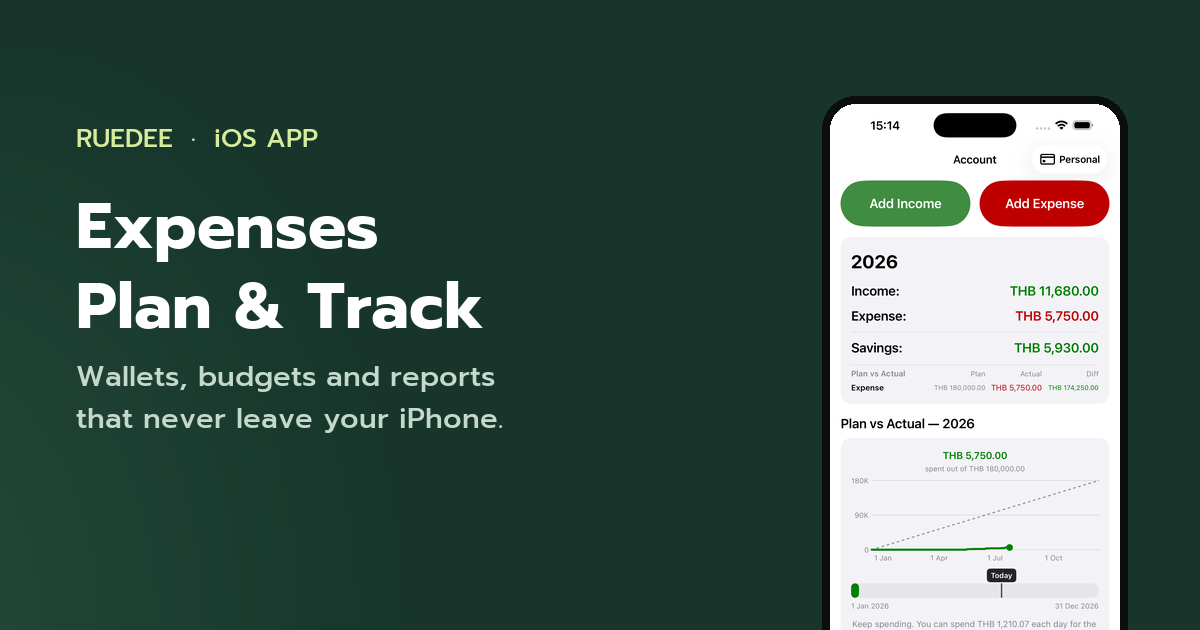
Expenses – Plan & Track
A private income and expense tracker for iPhone — wallets, budgets, reports and exports.