Free delivery in Thailand on orders over ฿1,200 · Made local, delivered with care
Ruedee.com
TH
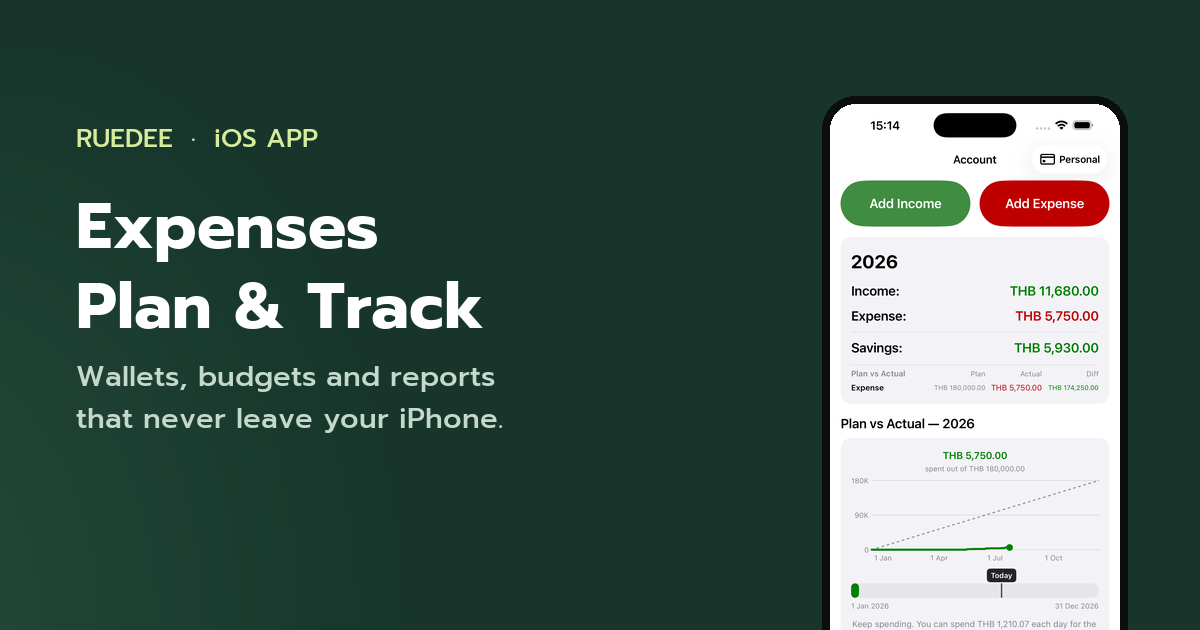
Expenses – Plan & Track

Expenses – Plan & Track

iPhone app by Ruedee

Track every baht.
Plan every month.

Expenses – Plan & Track records what comes in and what goes out across all your wallets, keeps your monthly budget in view while the month is still running, and hands the raw numbers back to you whenever you ask. Nothing ever leaves your iPhone.

Coming soon to theApp Store See what it does

Free. No account, no sign-in, no ads, no tracking.

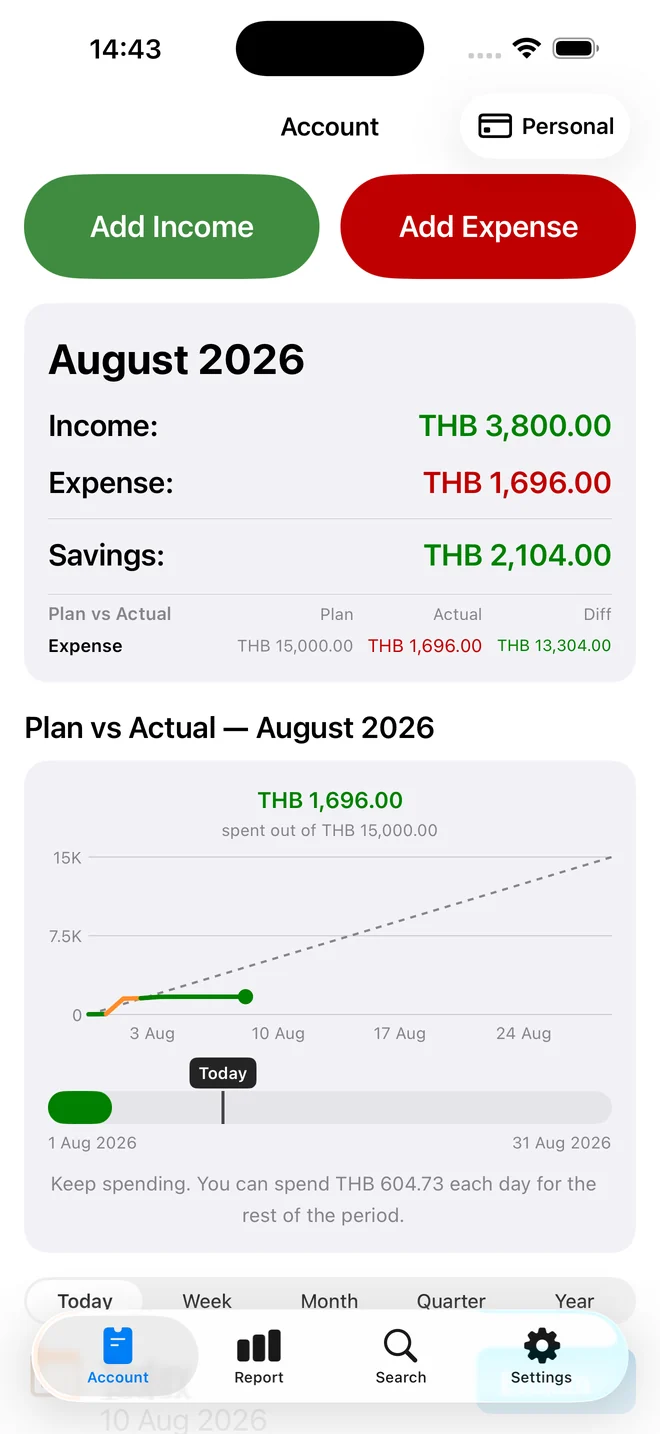
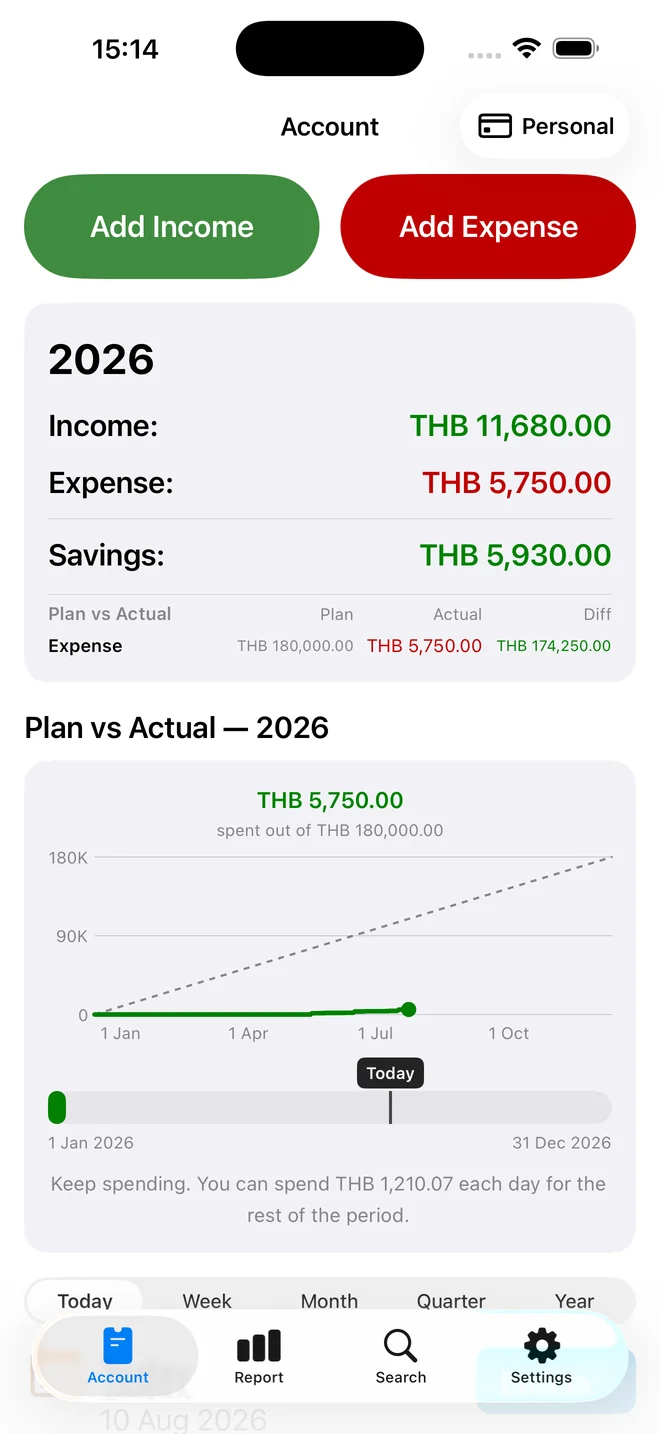
The Account tab showing income, expense and savings totals for 2026 above a Plan vs Actual chart.
  • No account or sign-in
  • Works fully offline
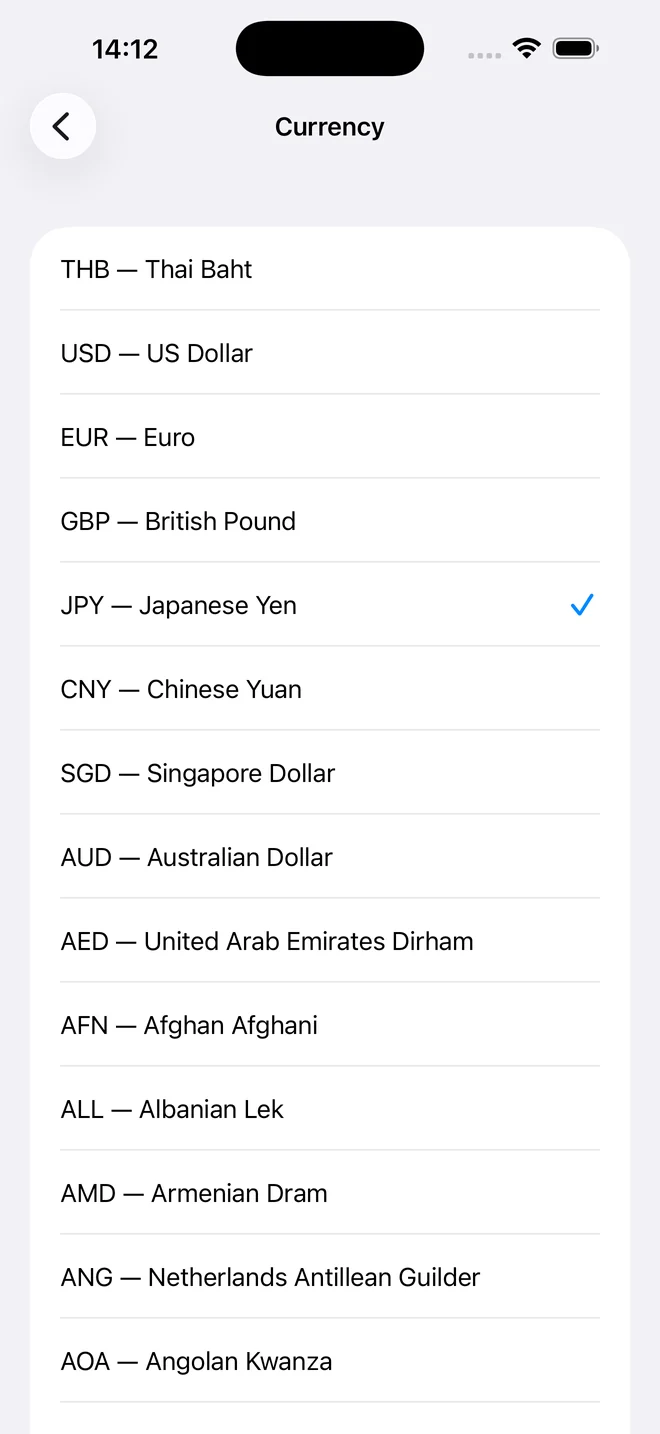
  • A currency for every account
  • Free, with no ads
What it does

Four things this app does properly

Not a hundred half-finished features — the handful you actually use every week, built so they hold up.

1

Every wallet and account in one app

Keep Personal and Business apart. Add a cash wallet, a travel fund, a joint account — each one named by you, each with its own currency, all in the same app.

  • Add as many accounts as you need, rename them any time
  • Set the currency per account, not just for the whole app
  • Switch accounts from the top of any screen, or pick All Accounts to see the combined picture
  • Accounts that already hold transactions are protected from accidental deletion
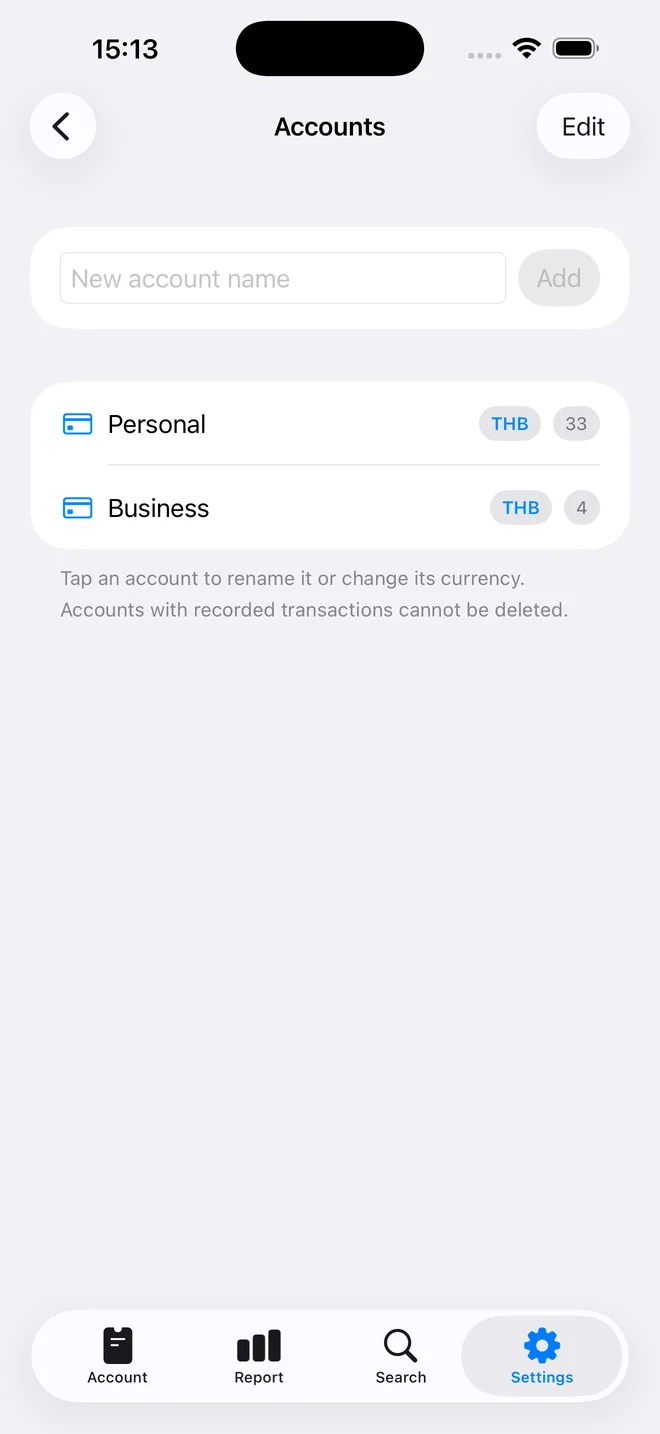
The Accounts screen listing a Personal account with 33 transactions and a Business account with 4, both in THB.
2

Plan the month, then watch it hold

Set a monthly budget — overall or category by category — and the Account tab tracks it live. Plan against actual, the gap between them, and how much is still safe to spend each day for the rest of the period.

  • A Monthly Budget Plan overall, or split across your categories
  • Plan vs Actual with the running difference, always visible
  • A daily safe-to-spend figure that updates as the month goes
  • Income, expense and savings summarised by month, year or all time
A monthly Plan vs Actual chart for August 2026 with the actual spend line tracking well below the planned line.
3

Your data is always yours

Take the raw transactions out as CSV, or generate a formatted Excel report for any year with data. Bring a CSV back in whenever you like — duplicate rows are skipped for you.

  • Export CSV — every transaction, unformatted and complete
  • Export to Excel Report — a detailed .xlsx for any year
  • Import CSV — restore a backup, duplicates skipped automatically
  • Files are written on your device, to the location you choose
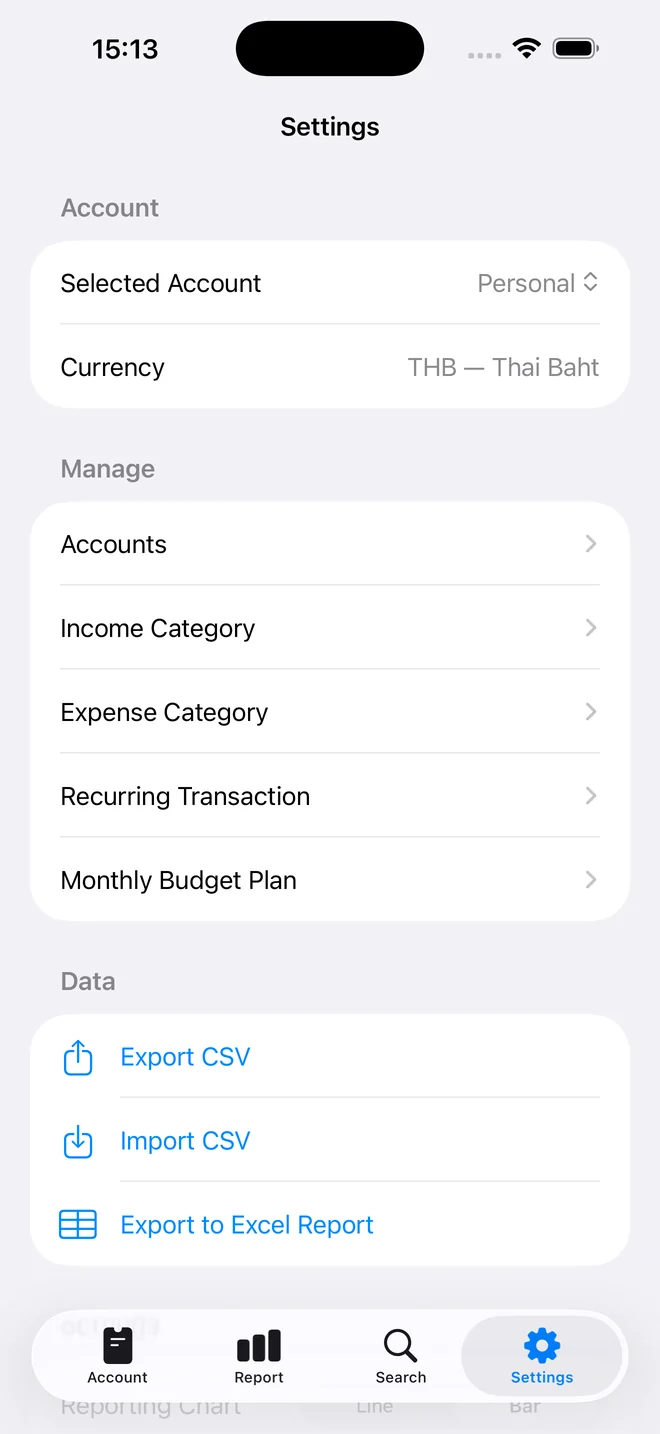
The Settings screen showing the selected account and currency, the Manage list, and Export CSV, Import CSV and Export to Excel Report.
4

Read your reports the way you prefer

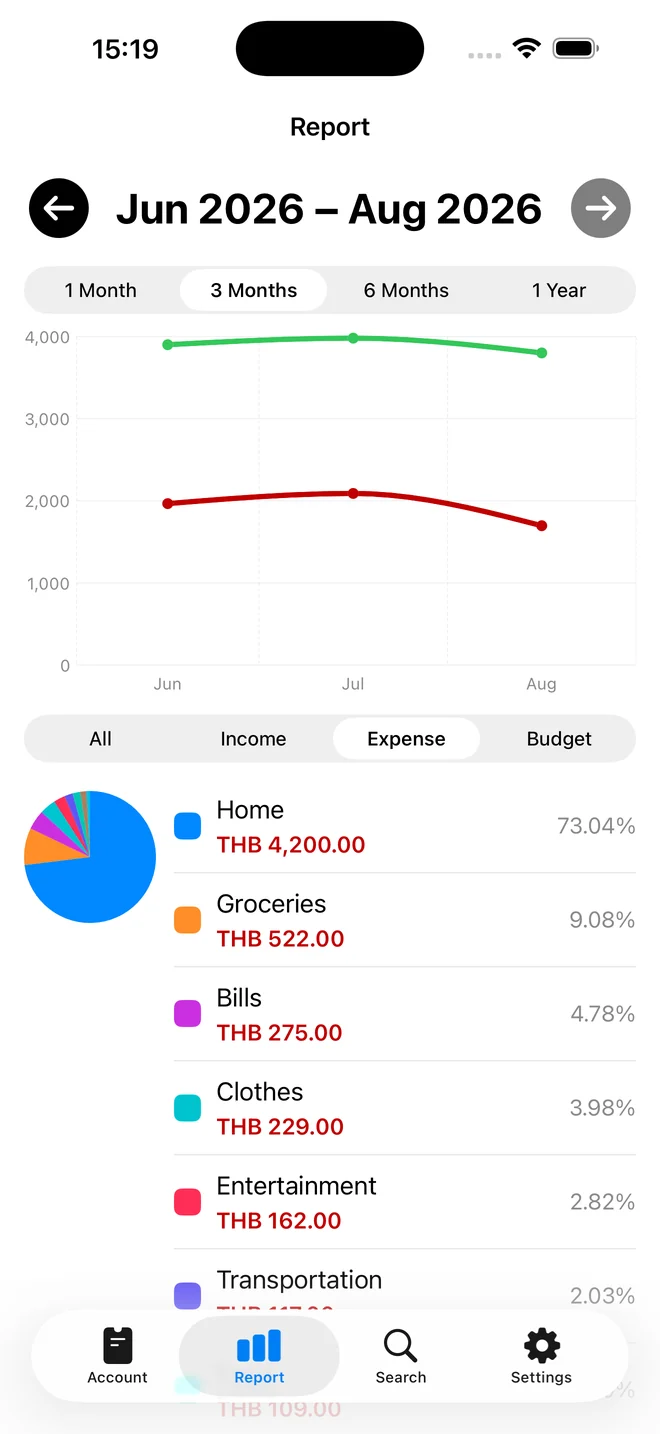
Some people read bars, some read lines. Choose in Settings and every report follows — over one month, three, six or a full year, with a category breakdown underneath.

  • Switch the reporting chart between bar and line at any time
  • Step through 1, 3, 6 or 12-month windows
  • Filter to All, Income, Expense or Budget
  • A category pie with the share each one takes, to two decimals
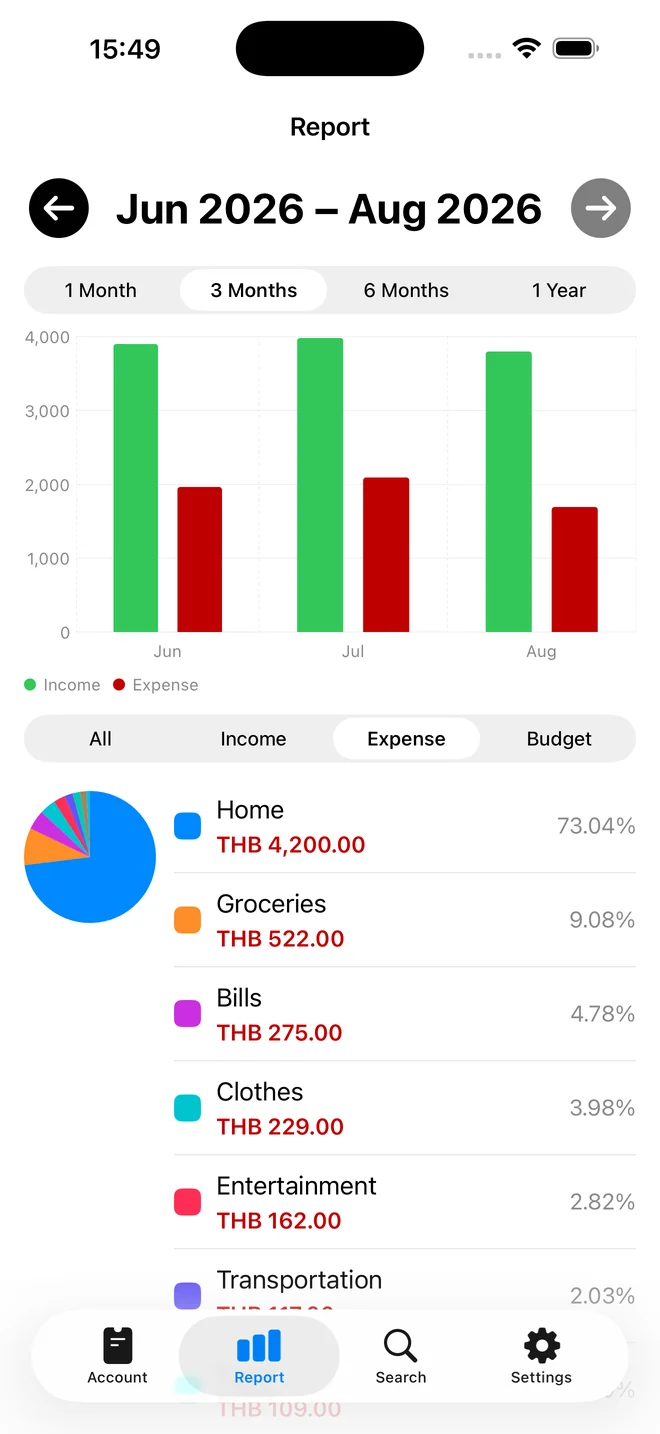
The Report tab with a bar chart comparing income and expense across June to August 2026, above a category pie chart.
A look around

Every screen, no clutter

Also in the app

The small things you would miss

Recurring transactions

Salaries, rent, bills and subscriptions post themselves when they fall due — daily, weekly, monthly or yearly.

Categories you control

Separate income and expense category lists, edited to match how you actually think about money.

Search

A whole tab for finding one transaction again, however long ago you recorded it.

Periods that fit

Today, week, month, quarter or year — and a summary that can read as a total, monthly or yearly.

Grouped your way

Read the detail list by date or by type, with the time of day shown or hidden.

Nothing phones home

No analytics, no advertising, no third-party SDKs. The app has no idea who you are, and that is the point.

Questions

Before you download

More detail — including backup and import — on the support page.

Where is my data stored?

Only on your device. The app works completely offline — there is no account, no sign-in, and nothing is sent to any server.

How do I back it up?

Open Settings → Export CSV to save every transaction to a CSV file. You can bring that file back in at any time with Import CSV, and duplicate rows are skipped automatically.

What does it cost?

Nothing. There are no ads, no subscription and no in-app purchases.

If I delete the app, is my data deleted too?

Yes. Because everything is stored on your device, deleting the app deletes its data. Export a CSV backup first if you want to keep it.

Start where your money actually is

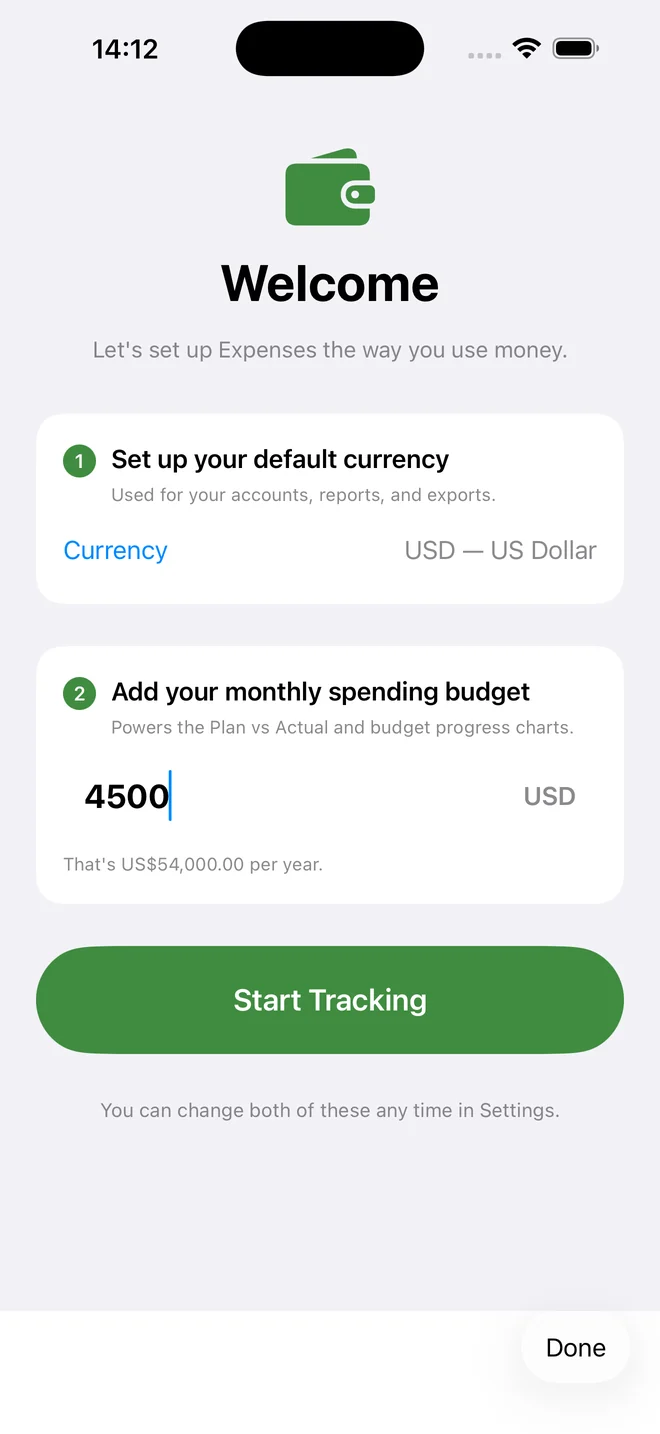
Set a currency, set a monthly budget, and record the first transaction. That is the whole setup.

Coming soon to theApp Store

Free · iPhone · no account required

Expenses – Plan & Track: Privacy Policy

Expenses – Plan & Track: Privacy Policy

Privacy policy for the Expenses – Plan & Track iOS app.

Expenses – Plan & Track: Support

Expenses – Plan & Track: Support

Get help with the Expenses – Plan & Track iOS app.

แชร์หน้านี้ให้เพื่อน: